
• «Fueling your logistics chain»

  • «Go beyond logistics, make the world go round and revolution business»

  • «Taking action, getting results»

  • «Logistics through innovation, dedication, and technology»

  • «Possibility in every direction»

  • «Ready, set, done»

  • «Special handling. Extra service»

  • «Thinking the way forward»

  • «Your navigator in the world of trade»

  • «Leadership and learning are indispensable to each other»

  • «Leadership is the capacity to translate vision into reality»

  • «Power beyond cargo»

  • «All time management begins with planning»

  • «Management is doing things right; leadership is doing the right things»

  • «Leading and inspiring people»

  • «Leadership is thinking and talking about the solutions»

  • «Streamlining your supply chain»

  • «Business acceleration through digital communication»

Portfolio - Article viewer

Microsoft Outlook - Quick steps

Outlook

Outlook helps users in managing their email messages, scheduling meetings in calendars, maintaining contact details and keeping track of the tasks to be completed; defining due dates and setting reminders to help people finish them in time. Users can also make their own notes.
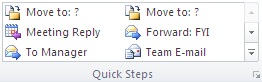

Quick steps

The Quick Steps included with Outlook 2010 can be customized. You can also create your own to make a Quick Steps gallery of mail actions that you take most often.


Default Quick Steps


You can customize any of the default Quick Steps. When you use some Quick Steps for the first time, you are prompted to configure them. For example, if you want a Quick Step to move messages to a certain folder, you must specify the folder before you can use the Quick Step.

Default Quick Steps in Outlook 2010 include the following:


Quick step Action
Move to:

Moves the selected message to a mail folder you specify and marks the message as read.

To Manager Forwards the message to your manager. If your organization uses Microsoft Exchange Server, your manager's name is detected in the Global Address List (Global Address List: The address book that contains all user, group, and distribution list e-mail addresses in your organization. The administrator creates and maintains this address book. It may also contain public folder e-mail addresses.) and inserted in the "To" box, or you can specify the recipient.
Team E-mail Forwards the message to others in your team. If your organization uses Microsoft Exchange Server, your team members names are detected in the Global Address List (Global Address List: The address book that contains all user, group, and distribution list e-mail addresses in your organization. The administrator creates and maintains this address book. It may also contain public folder e-mail addresses.) and inserted in the "To" box.
Done Moves the message to a specified mail folder, marks the message complete and marks it as read.
Reply & Delete Opens a reply to the selected message, and deletes the original message.
Create New You can create your own Quick Step to execute any sequence of commands, name it and apply an icon to help you identify it.

To configure or change existing Quick Steps, do the following:


  1. In Mail, on the Home tab, in the Quick Steps group, click the More arrow at the side of the Quick Steps box, and then click Manage Quick Steps.
  2. In the Quick Step box, click the Quick Step that you want to change, then click Modify.
  3. Under Actions, change or add the actions that you want this Quick Step to do.
  4. If you want, in the Shortcut key box, click the keyboard shortcut you would like to assign to that Quick Step.
  5. If you want to change the icon for a Quick Step, click the icon next to the Name box, click the icon that you want and click OK.


Create a Quick Step


  1. In Mail, on the Home tab, in the Quick Steps group, in the Quick Steps gallery, click the Create New Quick Step.
  2. Click an action type from the list or click Custom.
  3. In the Name box, type a name for the new Quick Step.
  4. Click the icon button next to the Name box, click on an icon and click OK.
  5. Under Actions, choose an action that you want the Quick Step to do. Click Add Action for any additional actions.
  6. To create a keyboard shortcut, in the Shortcut key box, click the keyboard shortcut that you want to assign.

New Quick Steps appear at the top of the gallery on the Home tab in the Quick Steps group. While changed Quick Steps retain the same location in the gallery, you can rearrange them in Manage Quick Steps.

Express your feedback

For more information, suggestions, requests, please feel free to contact me by clicking here.

You can also give a quick feedback by ckicking on the buttons below: