
Microsoft Outlook - Take control over your inbox
Learn about Outlook inbox customization
Now that you have optimized Outlook settings, you can personalize Outlook to fit your mail stream, and start exploring new work patterns, maximizing the possibilities Outlook gives you.
- Creating Outlook rules.
- Converting mail to tasks.
- The 4 D's.
- Managing your tasks with your calendar.
Get the volume down by Outlook rules
If you get 30 to 100 e-mails a day, which is quite usual for many in today's information society, my guess is that less than half of them contain any action for you. There is a lot of informational mail where you are typically on the cc: line, or mail sent to a distribution list. If you keep them in the Inbox along with action mail, it is difficult to get an overview of what is important to handle right now.
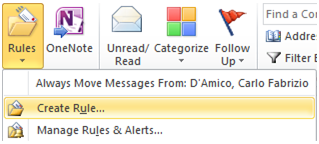
If you create rules, that automatically move them to subfolders in your Inbox, you still will know you have unread mail there, but you can check it once a day, not every time you look in your Inbox during the day.
Typically most will need rules for moving CC-mail and distribution list mail to other folders.
- Outlook 2007: Tools => Rules and alerts
- Outlook 2010: Home => Rules
Read more about
 Rules.
BE SMART WHEN WORKING IN THE INBOX
Do you start at the top, bottom, or scanning all mails in your Inbox to find the most urgent mail?
Use of Conditional formatting can help you to prioritize smartly.
Examples:
- Mail from manager in red color.
- Mail with only you on the to-line in green color.
Read more about
Conditional formatting.
You may already have hundreds of e-mails in your Inbox. You may also be in the situation that you have 50-100 unread e-mails when you open your Inbox. How do you address the most urgent and important e-mails first?
Mail sent only to you, or from you manager, will likely have higher priority then most other e-mails.
Converting mail to simple tasks
When you flag your mails, they automatically become tasks.
Make it a practice to never leave a mail in the Inbox after you have opened it.
You should decide immediately what to do with it.
Use the 4 D's as a guide:
- Do now.
- Delegate.
- Delete.
- Do later.
For most people, a lot of the things you do, follow up on, or delegate to others are initiated by receiving or sending a mail. So Outlook is your task management system, and it is made to support you in task management.
With Office 2010, Microsoft has taken the consequence of this, and developed Outlook into a superb task management system, utilizing mail as the major transport mechanism for the tasks.
Some have starting to flag mail, but still keep them in the Inbox until they are handled.
They use their Inbox as a task list, and regularly during the day browse through the Inbox to look for things they have to do today, and skipping those that can wait to tomorrow, or next week.
With Outlook, this is totally unneccesary. It is designed so that you can safely move the mail to a work folder, and it will pop up in your calendar exactly on the day you have decided to work on it.
However, I have found that the main reason that people does not move the mail out of the Inbox is that they don't trust the system. They are afraid of forgetting to do it if the mail is not visible anymore.
Here is what the major change in Outlook comes in. It is not designed for doing tasks while you are in the Inbox. In the Inbox, you prioritize, decide what to do with the mail, and when. The actual working on the mails and tasks, you do in the calendar view. You can be absolutely sure that your mail/task will be visible to you the day you have decided it to be.
The 4 D's
-
DO NOW
This will normally mean you answer the mail, talk to someone, deliver something etc. When you are done, you can either archive it in the right folder, or you can delete it. -
DELEGATE
The simplest would be just to forward the mail. After you have done so, delete the mail, or archive it in the right folder. If you want to follow up on the task, you can flag the mail with a date in the future you want to follow up on it. It will then turn up on that day in your task list. -
DELETE
Self explanatory. -
DO LATER
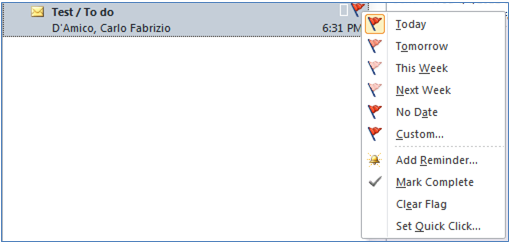
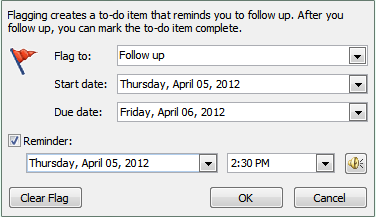
Decide when to do it, and flag it. Right click in the Flag field, and chose one of the predefined flags. Next Week will create a task with start date on Monday, and end date on Friday.
You can also use Custom. Chose only a start date. The end date will then default to the same. A task should normally be possible to do in one day.
When you have decided when to do it, archive it in the folder you want it to be after the.task is finished. If you don't need to archive, drag it to the Tasks folder.
Later when the task is done, click on the flag to mark it complete. Your mail/task will now already be archived in the right folder. If you do not need to archive it, just delete the task, and the mail will be deleted as well.
The clue to time saving and getting mails out of your Inbox is the pre-archiving of it, by deciding what will happen to the mail after you have completed the associated task, and archive it right away. Then you do not have to think about that later, and you will know where to go to find it again.
PRE-ARCHIVE THE MAIL IMMEDIATELY
When you have flagged a mail for follow up - archive it in the folder where you would like to find it after the task is done
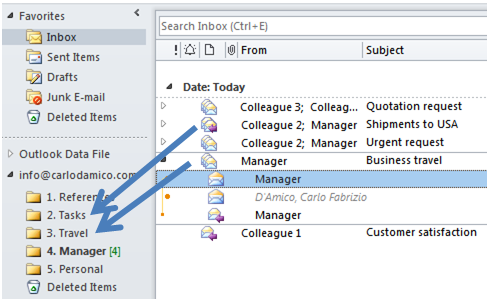
If you know you will delete the mail after the task is done, just move it to the Task folder for temporary storage.
You need to get the e-mail out of the Inbox after you have flagged it for follow up. Else it will disturb you, and you will be reminded of the task every time you go to the Inbox, even if it is 2 weeks until you plan to do anything about it.
By immediately moving it to the folder where you want to archive it after the task is done, you save time since you do not have to use time to archiving mails later.
If you know you will delete the mail after the task is completed, don't use time to find the best place to archive it. Just use a "Task folder" as temporary storage.
Managing your tasks with your calendar
If you have changed your task option to show tasks on Start Date, it will show up on the day you have decided.
However, that does not mean you will be able to handle all tasks set to start that day, and you will need to re-prioritize. This is very easy by dragging it to another day, and now we see why we do this in the calendar view. Here you can see the total work you have to do on each day which is the sum of appointments and tasks.
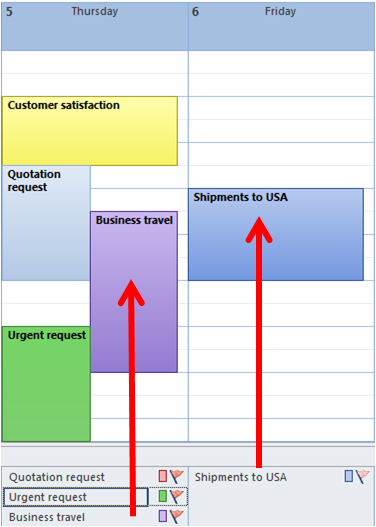
Now, you can see both your appointments and the tasks you plan to do. You can drag tasks to days where you have time to work on tasks. You can also drag tasks to the calendar.
Don't worry if you don't always manage to complete all tasks scheduled for the day. They will automatically be moved over to the next day. Also if you want to drag the task up to the calendar to set aside time to work on it, and if you have to do something else instead in that time, the task is still there, and will be moved to the next day.
If you use the task management features in Outlook with flagging of mails, you will never lose a task/mail, and will never need to be reminded from others about things you forgot.
Make sure all your working folders are within your Mailbox! The flagging and task management does only work in that context.