
Microsoft Outlook - Basic settings
Learn about Outlook basic setup
MAIN PURPOSE
One of the challenges today is that you have to both have a good overview of everything within your field of work, as well follow up on all details. The risk is that when you try to get a good perspective of the strategic aspect of your work, it is easy to forget the details.
Also, there will always be much more work to do than is possible, and you are the only one that knows your work load. So you have to decide on your priorities.
- Are you using Outlook to manage your tasks, or do you prefer to keep everything in your head?
- Are you using your time on the right tasks?
- Are your tasks aligned with your goals and objectives?
OUTLOOK BASIC SETUP
- Create more room for folders.
- Create extra calendar view window.
- Show tasks at the bottom of the calendar.
- Turn off mail notification.
- Turn on conversation view.
Most people keep the default settings in Outlook. There are a lot of adjustments to be done after installation to optimize the usage. It will take you only 10 minutes, and then you don’t have to do it again until you change PC next time.
Create more room for folders
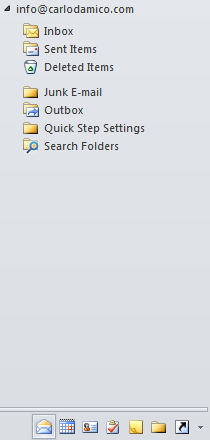
In my experience many do not customize their setup at all. Yet, everybody will recognize the mail symbol, the calendar symbol etc. And do not need to have it spelled out.
So, you can just drag the horizontal line over the Mail symbol down to the bottom, and only have the symbols visible.
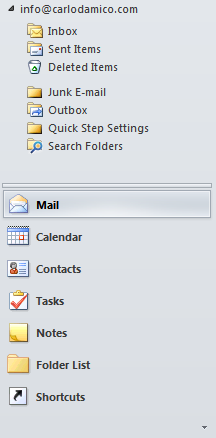 becomes:
Create extra calendar view window
This is a quick-win if you are working with an external monitor connected, and you choose to use the external as an extension of your desktop.
-
Right click on the Calendar symbol.

-
Choose Open in New Window.
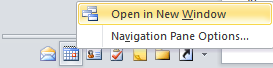
You now have 2 different Outlook windows. Drag one of them to your second screen, and you do not have to lose sight of your calendar and tasks, while you are working in your inbox.
You can have as many views as you like (for instance: a weekly view and a daily view in different windows, or a team overview in one window, showing the team’s calendars).
I use this possibility even when working with one screen, as it is much faster to switch windows than to change the views within Outlook.
Show tasks at the bottom of the calendar
One of the biggest improvements in Outlook is the ability to show tasks together with your calendar. This makes it possible to get an overview of the total workload you have. If you are only looking at your calendar, you don’t really see the full picture. Together with a much improved and simpler task management, it makes tasks much more attractive to use than it used to be.
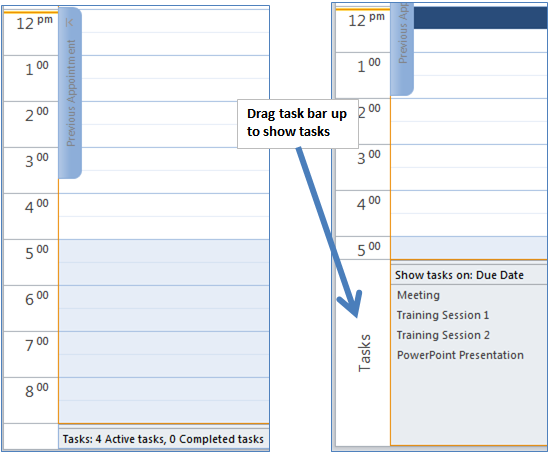
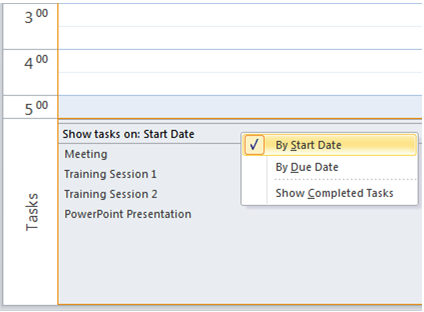
The default setup in Outlook is Show tasks on due date. The effect of this is that if you flag tasks to be done “Next week”, or with a due date of next Friday, all your tasks will show up on next Friday. But, that is far too late. You will need to work on the different tasks during the week, so to decide when to actually do the work, you want to show the start date.
- Change to show tasks on start date.
- Unmark "Show completed tasks".
Turn off mail notification
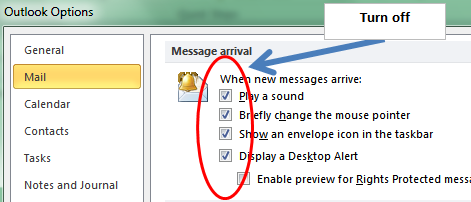
The consistent advice from everyone that works on effective work patterns is to take away everything that disturbs your concentration.
When you hear a ping, or worst of all if you get the new mail flag, you cannot avoid reading it, and it goes directly to your subconscious mind, that will have to start over with what you originally were thinking.
- Outlook 2007: Tools => Options => Mail Options
- Outlook 2010: File => Options => Mail
Using Conversation View
To access Conversation View click the View tab on the Ribbon. Then check Show as Conversations and select All Folders or Current Folder.
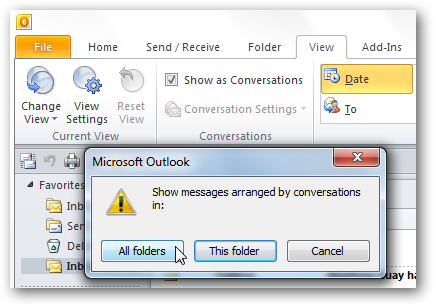
Now you can select how you want to arrange the conversations by the To field, who messages are from, Attachments, Importance, etc.

You email conversations will be arranged in the order you select.
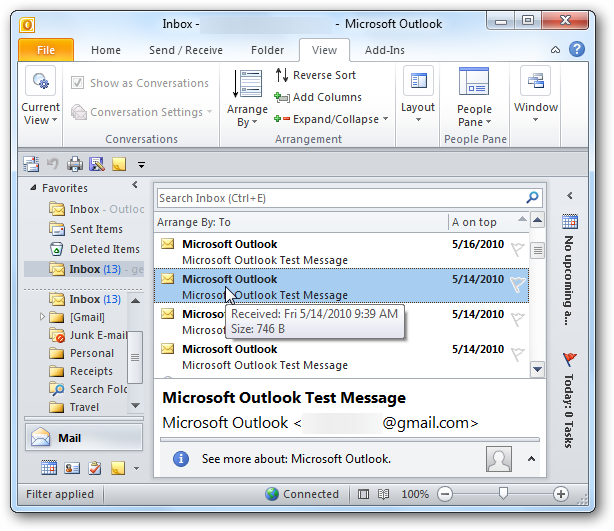
There are also different ways you can arrange your conversations by expanding the Conversation Setting menu. Then select how you want them to be displayed.
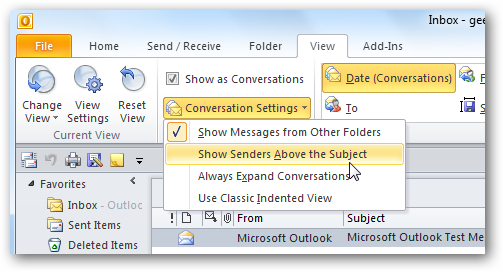
If you are looking to keep your relevant email conversations together in an easy to use format, using the Conversation View in Outlook is a good way to help.
This is especially helpful if you have a lot of emails scattered through your Inbox and are related to the same subject.