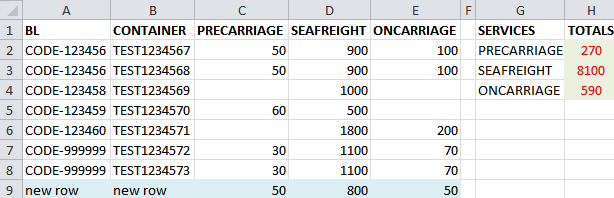
Microsoft Excel - Named ranges

Learn more about using names
Why names are useful?
A name is a meaningful shorthand that makes it easier to understand the purpose of a cell reference (cell reference: The set of coordinates that a cell occupies on a worksheet. For example, the reference of the cell that appears at the intersection of column B and row 3 is B3).
You can assign a name to specific cell ranges, too. For instance, an entire column or row.
A Named range is way to describe your formulas. So you don't have to write this in a cell:
= SUM(D2:D8)
You can replace the cell references between the round brackets. You replace them with a descriptive name, all of your own. So you could have this, instead:
= SUM(Seafreight)
Behind the Seafreight, though, Excel is hiding the cell references.
How do they work?
Firstly, click to download the
example file, or add the data seen in the image below in an Excel worksheet.
In this example, we want to calculate the total amounts for "Precarriage", "Seafreight" and "Oncarriage". It's important to note that further entries (i.e. rows) could be added later, so that the desired formula should not contain a reference to a fixed range. Thus, we want to link the formula to the entire columns C, D and E.
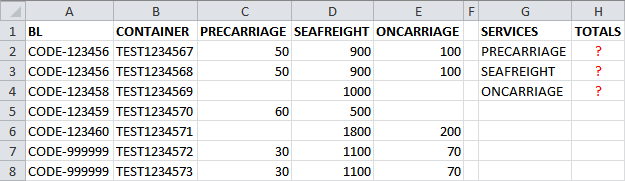
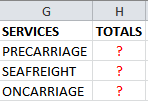
The total amounts should be written in cells H2, H3 and H4.
DEFINING NAMES
For Seafreight, you don't have to write the following formula in cell H2: = SUM(D2:D8).
It will not refer to further entries (i.e. rows) added later in your table (unless you don't change all your formulas too!).
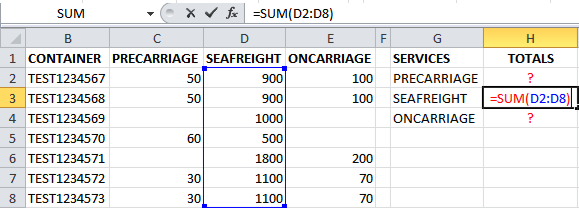
Instead, define your names. Do this:
- Highlight the entire column C, then click the Formulas menu.
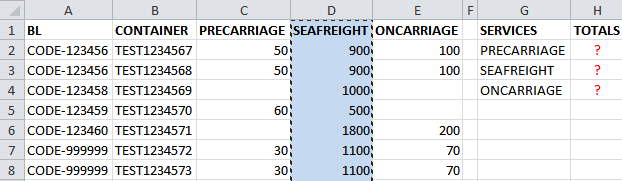
- Locate the Named Cells panel in Excel 2007. In Excel 2010, locate the Defined Names panel instead.
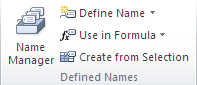
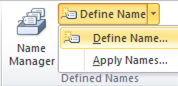
- Click Name a Range in Excel 2007 or Define Name in Excel 2010
-
From the Name a Range menu, click Name a Range (Define Name again in Excel 2010).
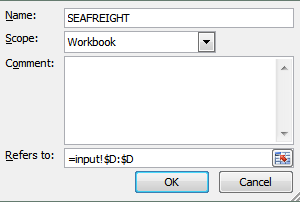
You will then get the following dialogue box (in which you can input your favourite name for the range. In this example, "SEAFREIGHT")
-
When you click OK, you'll be returned to your spreadsheet. You won't see anything changed. But what you have done is to Define a Name. And you can use the chosen name in your formulas, as shown below.
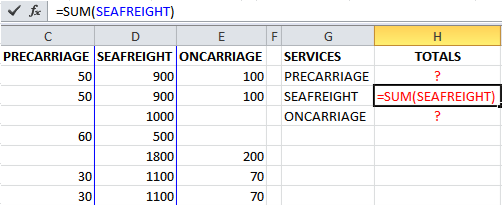
The total amount for "Seafreight" will be shown in cell H3 (that is 7300). - Now you can repeate the procedure for Precarriage and Oncarriage:
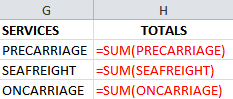 becomes:
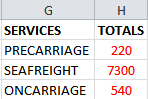
YOUR NAMES REMAIN VALID WHEN YOU ADD ENTRIES
If you add an entry at the bottom of the table, you will see that Excel automatically adds up the entry's amounts to the total values for all named ranges.