
Microsoft Excel - Drop down lists

Learn about Drop down lists
When Drop down lists are useful?
If you have to type the same data into cells all the time, then adding a drop down list to your spreadsheet could be the answer (in Excel, this comes under the heading of Data Validation).
How?
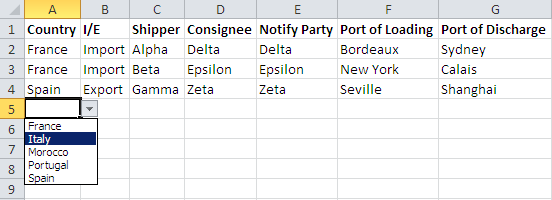
In the example below, we have a table of shipments filled in by drop down lists. We only have to click a cell in the A column to see a list of countries. You'll see how to do that now. Here's a picture of your finished spreadsheet:
Click to download the
example file.
In the image above, we can simply select a country from the drop down list - no more typing! We can also do the same for the other columns.
So, create the following headings in a new spreadsheet:
- Cell A1: "Country"
- Cell B1: "I/E"
- Cell C1: "Shipper"
- Cell D1: "Consignee"
We now need some data to go in our lists. So, type the same data as in the image below. It doesn't need to go in the same columns as ours. But don't type in Columns A, B, C or D:
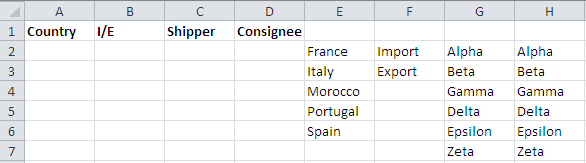
The data in Columns E, F, G and H above will be going in to our list.
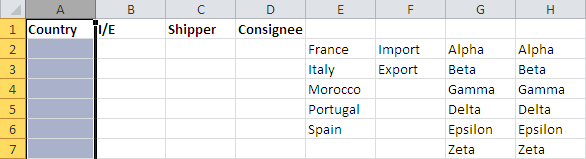
Now click on Column A to highlight that entire column:
With Column A highlighted, click on Data from the Excel Ribbon at the top.

From the Data tab, locate the Data Tools panel. On the Data Tools panel, click on the Data Validation item. Select Data Validation from the menu:
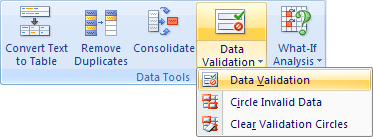
When you click Data Validation, you'll see the following dialogue box appear:
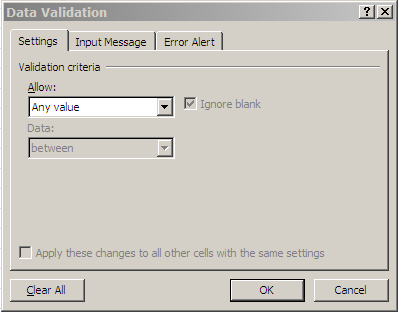
To create a drop down list, click the down arrow just to the right of "Allow: Any Value" on the Settings tab:
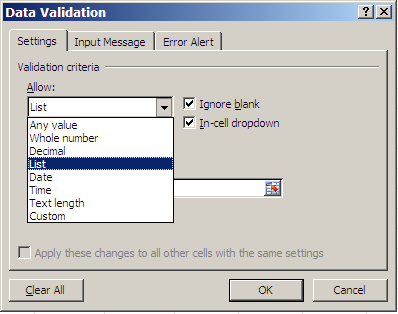
Select List from the drop down menu, and you'll see a new area appear:
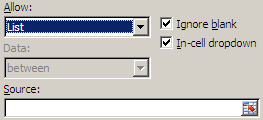
Allow means which data you want to accept. "List" does not permit the user to enter values different from the source ones.
Source means which data you want to go in your list. You can either just type in your cell references here, or let Excel do it for you.
To let Excel handle the job, click the icon to the right of the Source textbox:

When you click this icon, the Data Validation dialogue box will shrink:

Now select the cells on your spreadsheet that you want in your list. For us, this is the Countries:
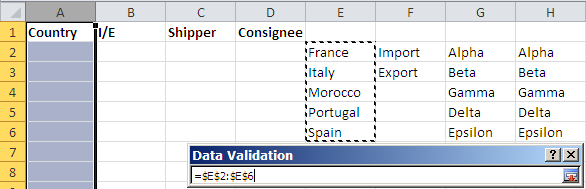
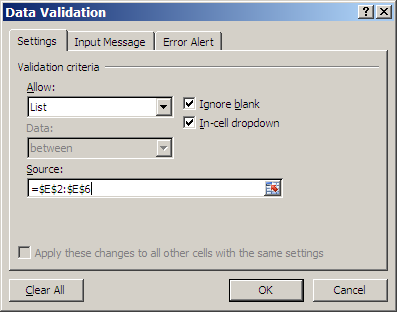
Once you have selected your data, click the same icon on the Data Validation dialogue box. You'll then be returned to the full size one, with your cell references filled in for you:
Click OK, and you'll see the A column with a drop down list in cell A1:
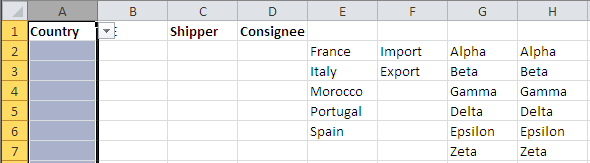
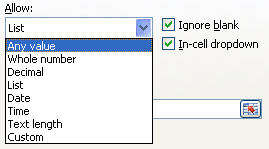
However, you don't want a drop down list for your A1 column heading. To get rid of it, click inside of cell A1. Click the Data Validation item on the Data Tools panel again to bring up the dialogue box. From the Allow list, select Any Value:
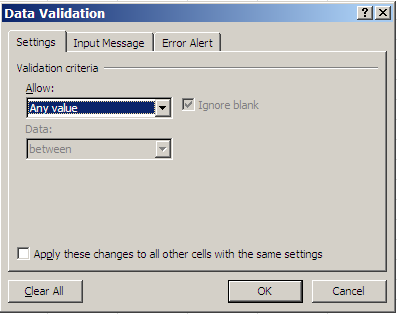
Click OK on the Data Validation dialogue box, and your drop down list in cell A1 will be gone.
The rest of the column will still have drop down lists, though. Try it out. Click inside cell A2, and you'll see a down-pointing arrow:
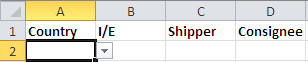
Click the arrow to see your list:
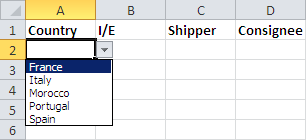
Select an item on your list to enter that name in the cell. Click any other cell in the A column and you will see the same list.
SYNTHESIS
Adding a drop down list to your cell can save you a lot of time. And it means that typing errors won't creep into your work.
Click to download the
example file.